

How to Record a Podcast on iPhone: The Complete Step-by-Step Guide (2025)
Did you know there are over 464 million podcast listeners worldwide? That's right, the wild world of podcasting has exploded - and you don't need a fancy studio to get in on the action. With just an iPhone in your pocket, you can make podcasts anytime, anywhere!
In this step-by-step guide podcast recording guide, we'll show you exactly how to make podcasts on iPhone. From your microphone to recording apps, let's dive in!
Essential Recording Equipment for iPhone Podcasting
While your trusty iPhone is the star of this podcasting show, a few extra pieces of equipment can elevate your audio quality from amateur to pro. First up, let's talk about your iPhone model. We’d recommend at least an iPhone 13 model or better.
Next, invest in a pair of comfy headphones to monitor your audio as you record. Over-ear headphones provide the best sound isolation for podcasters - this will help with audio editing later too.
We’d also recommend an external microphone to really up your game. A plug-and-play lavalier mic is perfect for interviews, while a sturdy tabletop mic works wonders for solo shows. There are also external mics like Rode PodMic that you can connect directly to your iPhone's lightning port.
Don't forget the accessories! Pop filters reduce pesky "p" sounds, and windscreens are a must for outdoor recording. And yes, they have pop filters for external microphones that work well with an iPhone!
Lastly, keep your iPhone stable and charged with a small tripod and portable battery pack. With this setup, you're ready to dive into the podcasting world!
How to Record a Podcast on iPhone
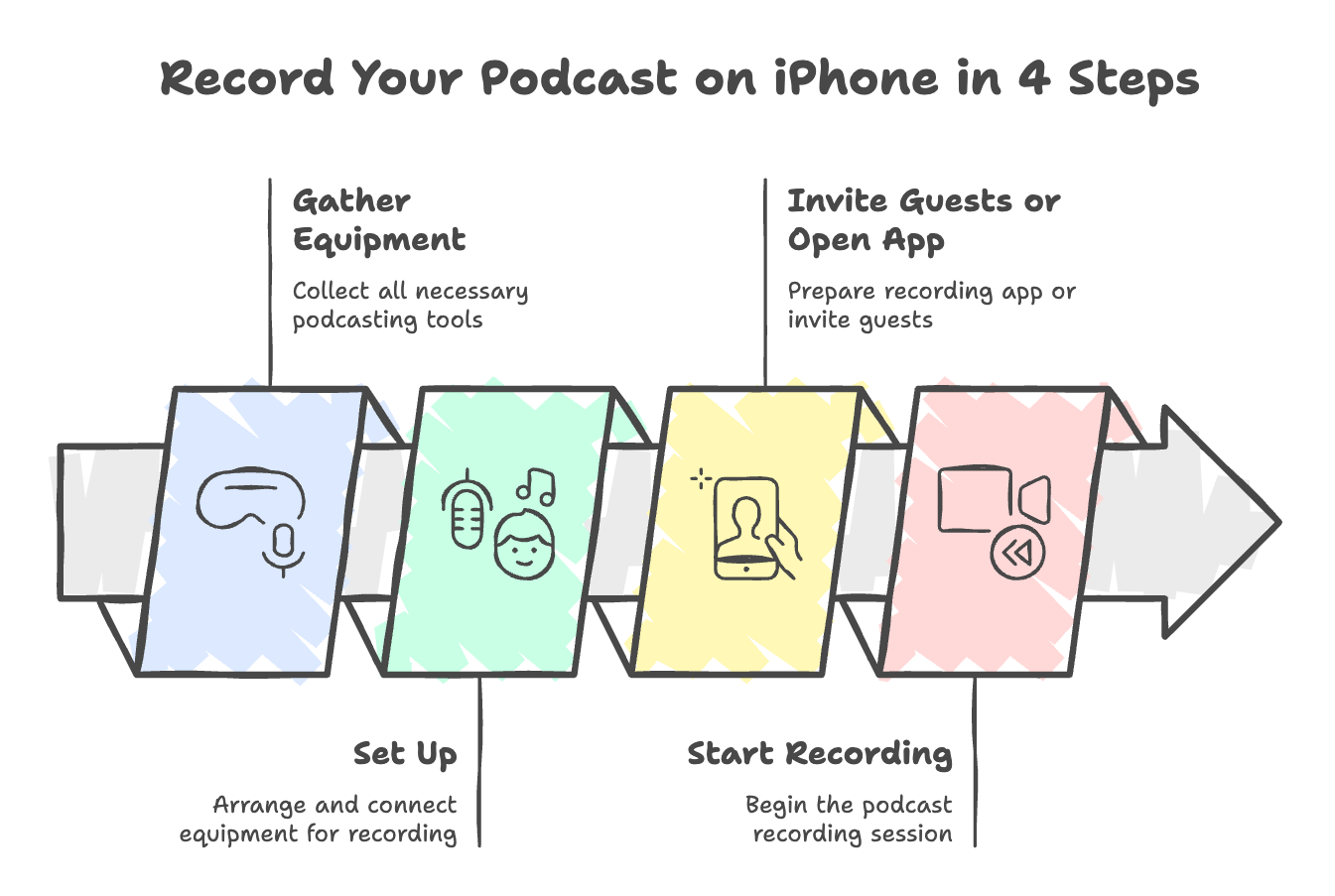
Here are the simple steps for podcast recording with your iPhone:
- Gather your podcast equipment - your phone, podcast microphone, headphones, and if you’re recording video, grab a tripod (Again - you could use your internal microphone, but we strongly recommend an external microphone for recording!)
- Connect your external mic to iPhone (we recommend either a Bluetooth microphone or using a splitter so you can still plug in headphones)
- Plug in your headphones
- If recording video for video podcasts, mount your iPhone on tripod at eye level
- Check all of your recording equipment before you move on to the next step. There's nothing worse than an iPhone recording that is missing audio because of an external microphone that was turned off the whole time!
- You can use recording software apps like Riverside, Zoom or Squadcast with your iPhone
- Some podcast hosting companies also offer recording apps such as Podbean
- If you're recording in person, Garageband has a recording app that helps your audio files sound like they were created in a recording studio too. You can download this to your iPhone in the app store.
- Hit the recording button
Wait! Can't I just create a podcast recording with my voice memos app?
While it is possible to create a podcast recording using the Voice Memos app on your iPhone, it's important to consider the audio quality and overall production value of your podcast. Voice Memos app is a convenient built-in app that allows you to quickly record audio, but it may not provide the best sound quality or offer advanced features that are essential for creating a professional-sounding podcast.
To ensure that your podcast has the highest possible audio quality, it's recommended to use dedicated podcast recording apps. These recording apps are specifically designed for podcasting and offer a range of features that can enhance your recording experience and improve the overall quality of your podcast. Many podcast apps provide high-quality audio recording capabilities, allowing you to capture crisp and clear audio directly from your iPhone.
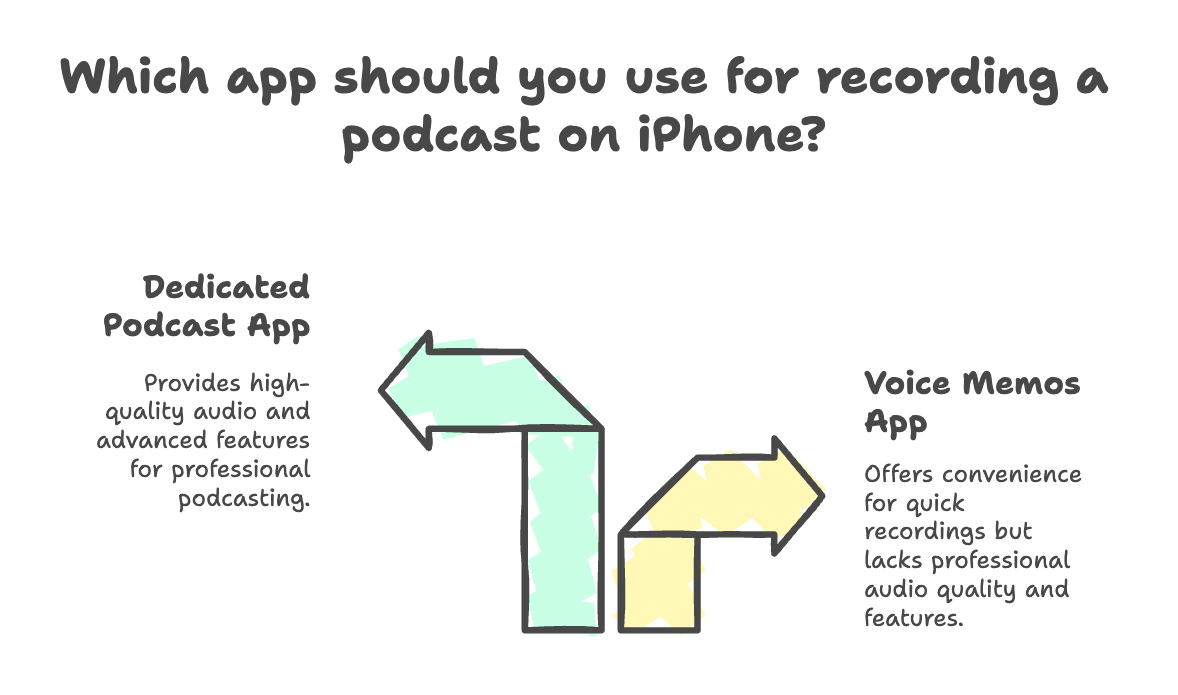
Moreover, podcast apps often come with built-in editing tools, which enable you to trim, split, and arrange your audio clips easily. This can save you a lot of time and effort compared to using a separate audio editing software. Additionally, many podcast apps offer the ability to record remote interviews or conversations with co-hosts or guests, making it convenient to collaborate and create engaging content.
While the Voice Memos app can offer a quick and easy way to record audio, it's worth investing time in exploring podcast apps that prioritize audio quality and offer a more comprehensive set of features.
A few tips for recording your podcast on iPhone
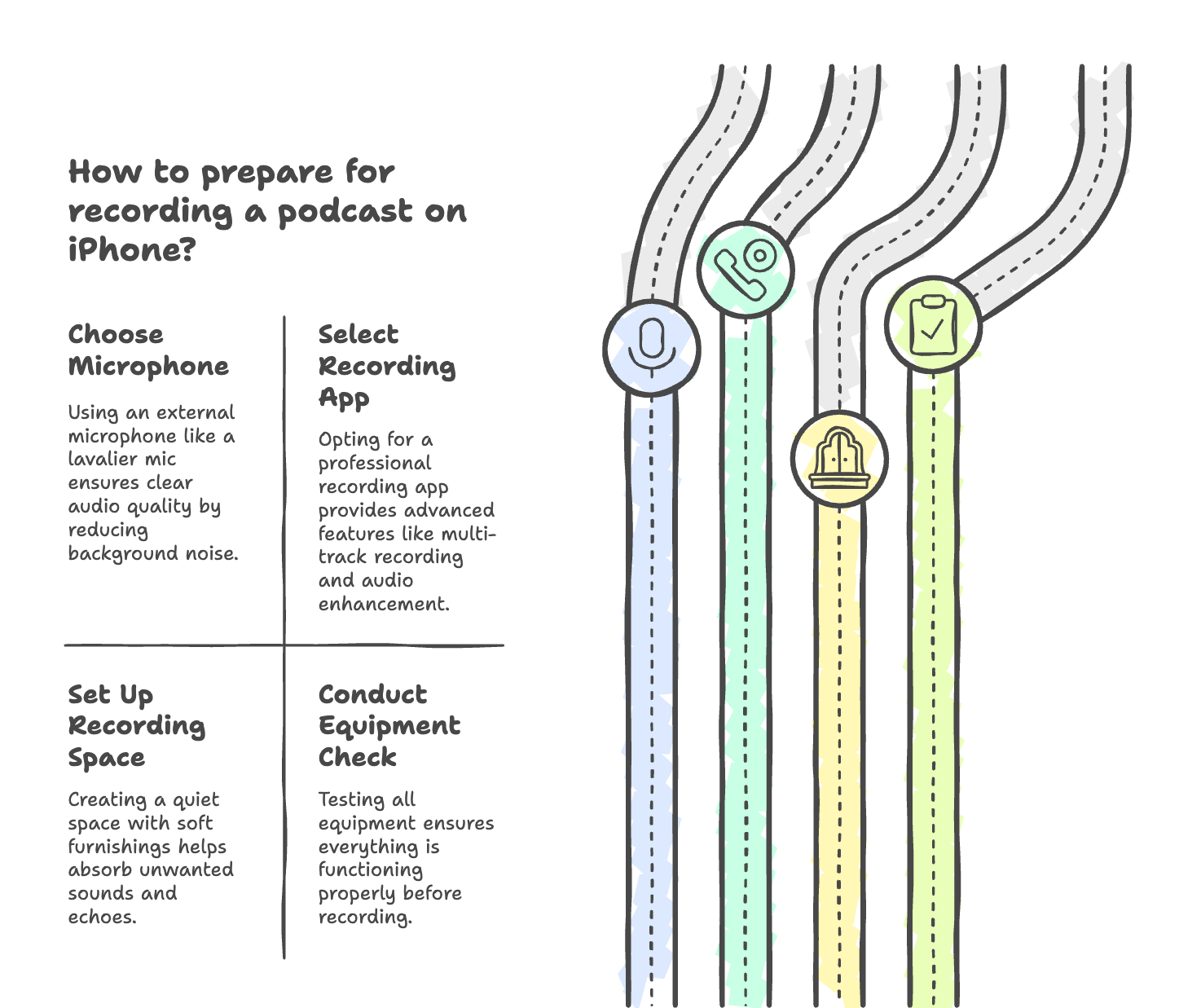
Let's set the stage for podcasting success. While lavalier mics often help with cutting out background noise, you’ll want to scout out a quiet space with minimal background noise and echoes.
Soft furnishings like curtains and rugs help absorb unwanted sounds.
For the clearest audio, use an external microphone such as a lavalier mic, and prop your iPhone up on a tripod.
When it comes to choosing a recording app, you have options. Again, you have iPhone's built-in voice recorder - Voice Memos app, which can handle basic recording needs. But for more advanced features (and the ability to record guests remotely), explore professional recording apps like Garageband and Podbean Look for apps with audio enhancement tools, multi-track recording, and easy exporting options.
Before hitting the record button on your iPhone for your first episode, run through a quick checklist.
✅ Is your podcast setup ready?
✅ Has your podcast equipment - external mic, headphones, iPhone - been tested?
✅ Content outlined? Read our expert tips on creating a podcast outline
✅ Audio levels checked? Listen for things like pops, background noise, feedback, and other things your external microphone might be picking up that you don't want to hear in your podcast episodes.
Lastly, don't forget to adjust your settings for the highest iPhone recording quality!
Once you've gone through your podcasting pre-recording checklist, it's time to finally hit record!
Pro Tip: Project your voice with enthusiasm, but avoid yelling or speaking too close to the mic.
If any background noises still manage to creep in, just pause, take a breath, and start again from the beginning of your thought. And don't worry too much about perfection - you can always edit out the flubs later!
iPhone Recording Post-Production Tips
Hopefully, after following the steps above, you've recorded your first episode! Now, let's polish it up in post-production to generate the best podcast quality you can. Many recording apps have basic editing features like trimming and splitting audio file. Cut out any long pauses, fumbled words, or awkward sections.
Pro Tip: Use your closed back headphones while editing as well to achieve the best end result possible.
You can also export your show from your recording software and upload it to a platform like Adobe Podcast AI on desktop. This app can help you clean up your audio file and make it sound like you recorded it in a pro recording studio. However, there are also iPhone apps for audio editing if you prefer to do everything for your podcast on your iPhone.
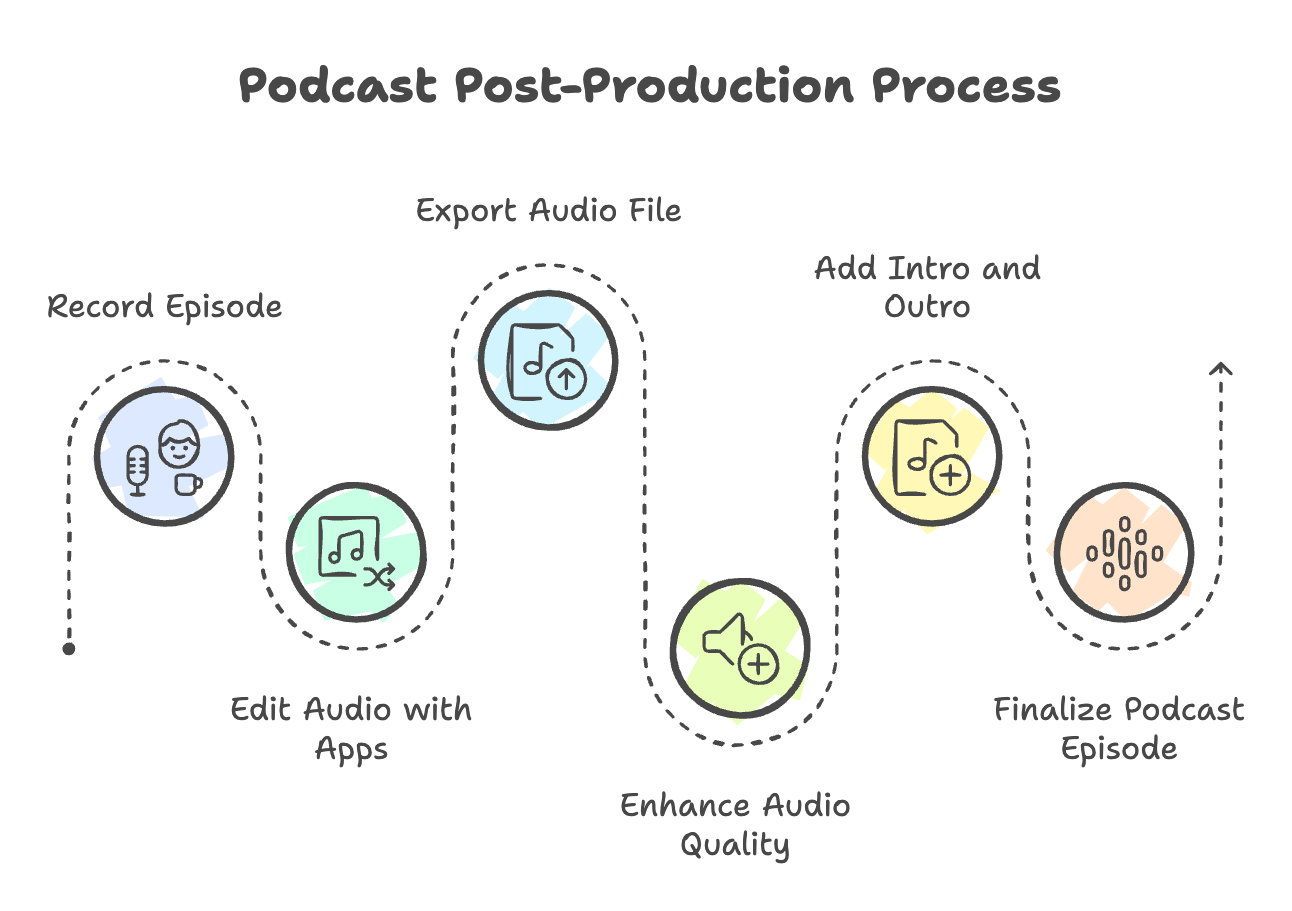
If desired, upload an intro and outro audio file to your episode to give the final product an even more of a professional feel.
Next, enhance your audio recording with a few tweaks. Adjust the volume levels to ensure a consistent listening experience. Remove any lingering background noise or hum. And if you really want to make your episode pop, add some royalty-free music or sound effects!
Making Your iPhone Podcast Professional with Castmagic
Want to take your iPhone-recorded podcast to the next level? Castmagic is your secret weapon! This AI-backed platform streamlines your post-production process. Simply upload your audio or video podcast to Castmagic and watch the magic happen.
Castmagic's AI technology automatically generates episode titles, descriptions, and timestamps for your show. It also transcribes your episodes, making it a breeze for podcasters to repurpose content for show notes, blog posts, and social media content.
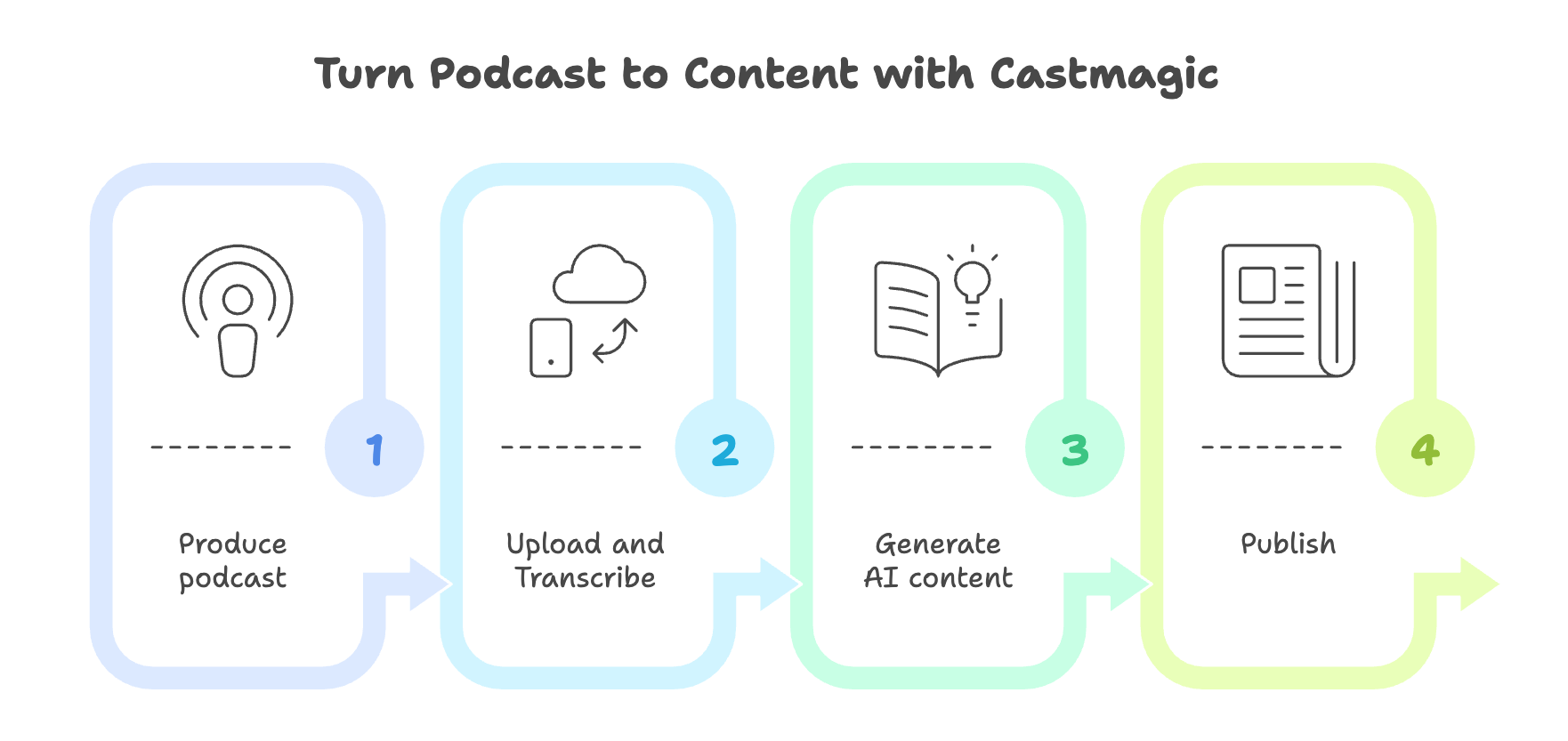
But the magic doesn't stop there! Castmagic also helps maximize your podcast's reach. Convert full audio or video podcasts into scripts for bite-sized social media snippets, ready-to-go Tweets and posts for Threads, and engaging newsletter content. With Castmagic, you'll spend less time on tedious tasks and more time with podcast recording and building your fanbase of loyal listeners!
How to Publish and Distribute Your iPhone Podcasts
Now that your episode is polished and ready to publish, it's time to share it with the world! For maximum exposure, you'll need a podcast hosting platform. Services like Buzzsprout, Podbean, and Transistor securely store your audio files and generate an RSS feed. The RSS feed is your key to distribution on major podcast directories like Apple Podcasts, Spotify for Podcasters, and YouTube.
Related: Learn how to distribute your show to Spotify for Podcasters
When choosing a podcast hosting platform to publish your show, consider factors like upload storage limits, bandwidth, and pricing. Some of the best podcast hosts offer built-in analytics and promotional tools, which can be valuable as your show grows. Once you've set up your hosting, submit your RSS feed to the top directories. Most platforms have a simple submission process, but be sure to optimize your show details and artwork for each podcast app/directory!
More Tips for iPhone Podcast Success
Well done! You're officially a podcaster! To keep the momentum going, consistency is key. Stick to a regular recording and publishing schedule, even if it's just once a month. Engage with your listeners through social media, email newsletters, or even in-episode shout-outs. And don't be afraid to cross-promote with other podcasters in your niche!
As you continue your podcasting journey, regularly test your equipment, invest in backups of your audio, and always save your project files.
When planning content, focus on quality over quantity. A well-structured, engaging episode will always outperform a rambling, unedited one.
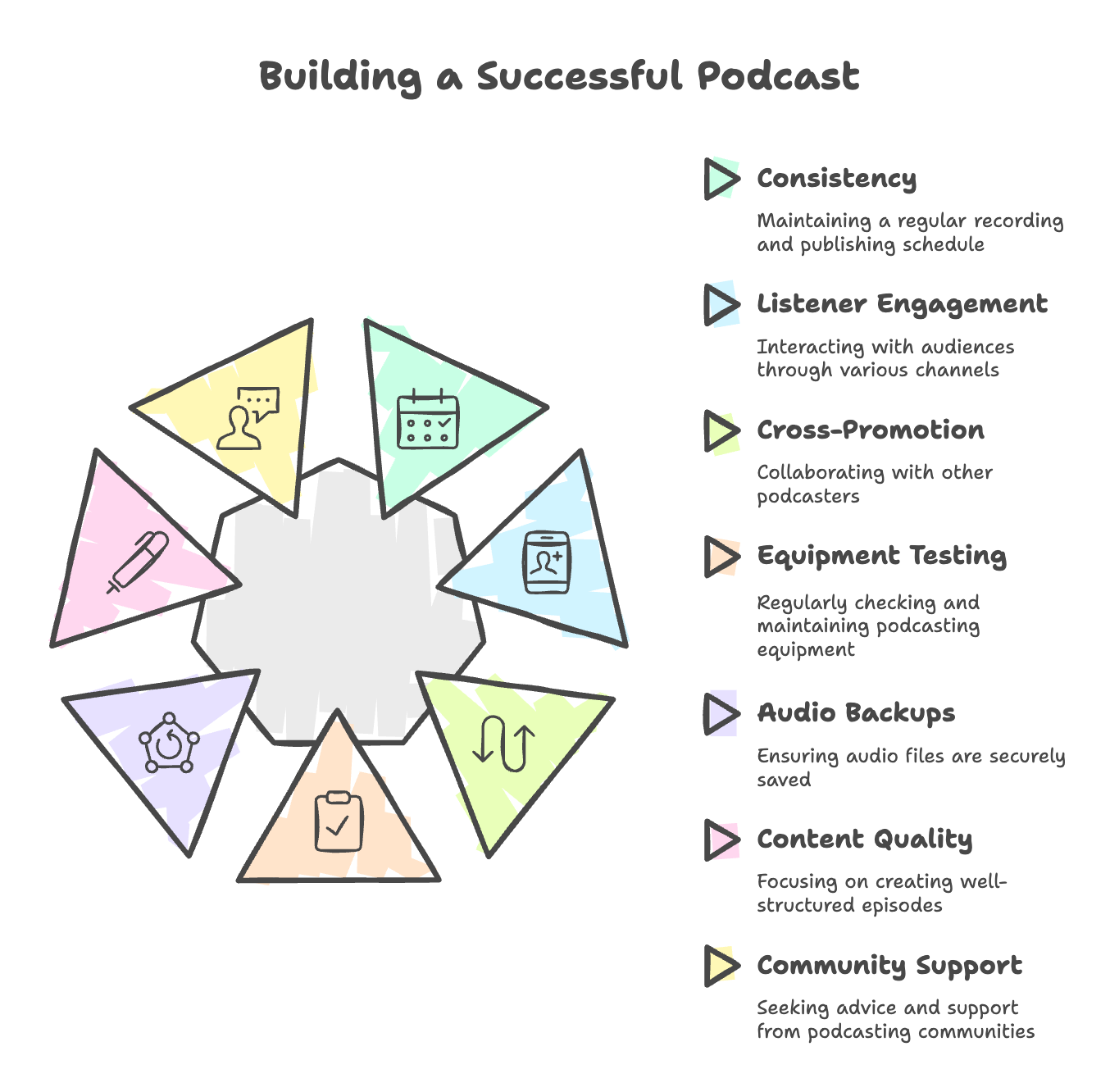
And if you ever feel stuck, don't hesitate to reach out to the vibrant podcasting community for support and advice! Podcast communities like Podcast Movement and Podfest on Facebook are great places to get advice on things like the best microphone, improving audio quality, video podcasts, and more. Just be sure to read the rules on groups like this before posting, and use the search feature to see what others have asked before asking questions too.
Related: Check out the best podcasting tools for better audio quality.
Turn Your iPhone into a Podcast Studio
From essential recording equipment to publishing your first episode, you now have the tools and knowledge to bring your podcasting vision to life with your iPhone. The beauty of iPhone podcasting lies in its accessibility. With just a few taps, you can record and share your unique voice with the world.
And remember - In a pinch, you could just take your voice memos app and upload them directly to your podcast host to be distributed on Apple Podcasts, Spotify for Podcasters, and other audio directories. But, for a more professional show, we highly recommend using a lot of the advice we've shared in this post.
Experiment with different formats, guests, and topics. Learn from your mistakes and celebrate your successes. And most importantly, have fun! Podcasting is a creative outlet like no other, and with your iPhone in hand and your voice at the ready, the possibilities are endless.
So what are you waiting for? Grab your iPhone, create your podcast, and let your audio be heard!
And, if you want help with podcast promotion, check out Castmagic for your show notes, blog posts, and social media needs. Click here for a free trial today!
More blogs like this

How to Record Audio on iPhone: Easy Steps for Beginners
Whether you're capturing a brilliant idea at 2 AM, recording a lecture, interviewing someone for a podcast, or simply saving a voice note to remember later, your iPhone makes it incredibly simple. No fancy equipment needed.

Podcast Background Ideas: Quick Tips for Stunning Videos
You might already know this, but a lot of podcast listeners prefer to actively watch the video while tuning into their shows on YouTube these days. And, the first thing they see isn't your carefully crafted message or your engaging personality. It's your background.
Corporate Video Production Strategies for Remote Teams
Remote corporate video production, when done right, can be more efficient, creative, and cost-effective than ever before. The key is understanding how to build corporate video frameworks that work for distributed teams while maintaining the quality and consistency your brand demands.
How to Find Zoom Recordings: Step-by-Step Guide
Picture this: You've just wrapped up an important client presentation, a critical team brainstorming session, or an educational webinar that you absolutely needed to reference later. You hit that record button during your Zoom meeting, breathed a sigh of relief knowing everything was captured, and then... where did it go?

Best Enterprise SEO Tools for Smart Marketers in 2026
As we navigate through 2026, the gap between companies using enterprise-grade SEO solutions and those relying on basic tools continues to widen dramatically. Smart marketers understand that scaling SEO success requires the right technology stack.

How to Use AI Podcast Show Notes to Grow Your Show
What should take 30 minutes somehow stretches into two hours as you struggle to capture the essence of your conversation, identify key timestamps, and craft something that will actually help people discover your show. Sound familiar? Here's the thing though, search engines can't listen to your audio content. They rely entirely on text to understand what your episodes are about.

How to Use AI for Small Business Marketing: Make More Money
Because of AI programs, it’s easier than ever to level up your business. Whether you want to increase your output of blog posts, ramp up your social media efforts, or finally launch your email newsletter, AI software is giving you the shortcut to getting more things done in less time. Want in on this? Keep reading because in this post we’re breaking down how to use AI for small business marketing so you can make more money for your efforts.

Best AI Blog Post Generator: Use AI to Create Content Fast
Whether you're a solo blogger trying to scale your content operation or part of a marketing team looking to boost productivity, AI tools are changing the game. Let's dive in and explore how these innovative solutions can transform your content strategy!

How to Improve Your YouTube Intro with Introduction Examples
Whether you're creating educational content, vlogs, product reviews, or entertainment videos, the introduction ideas for YouTube we'll explore in this article can transform casual viewers into loyal subscribers.Below, we'll dive deep into proven intro strategies that top creators use to capture attention and maintain viewer engagement. From psychological principles that drive retention to practical templates you can implement immediately, we're covering everything you need to elevate your YouTube intro game!